Appearance
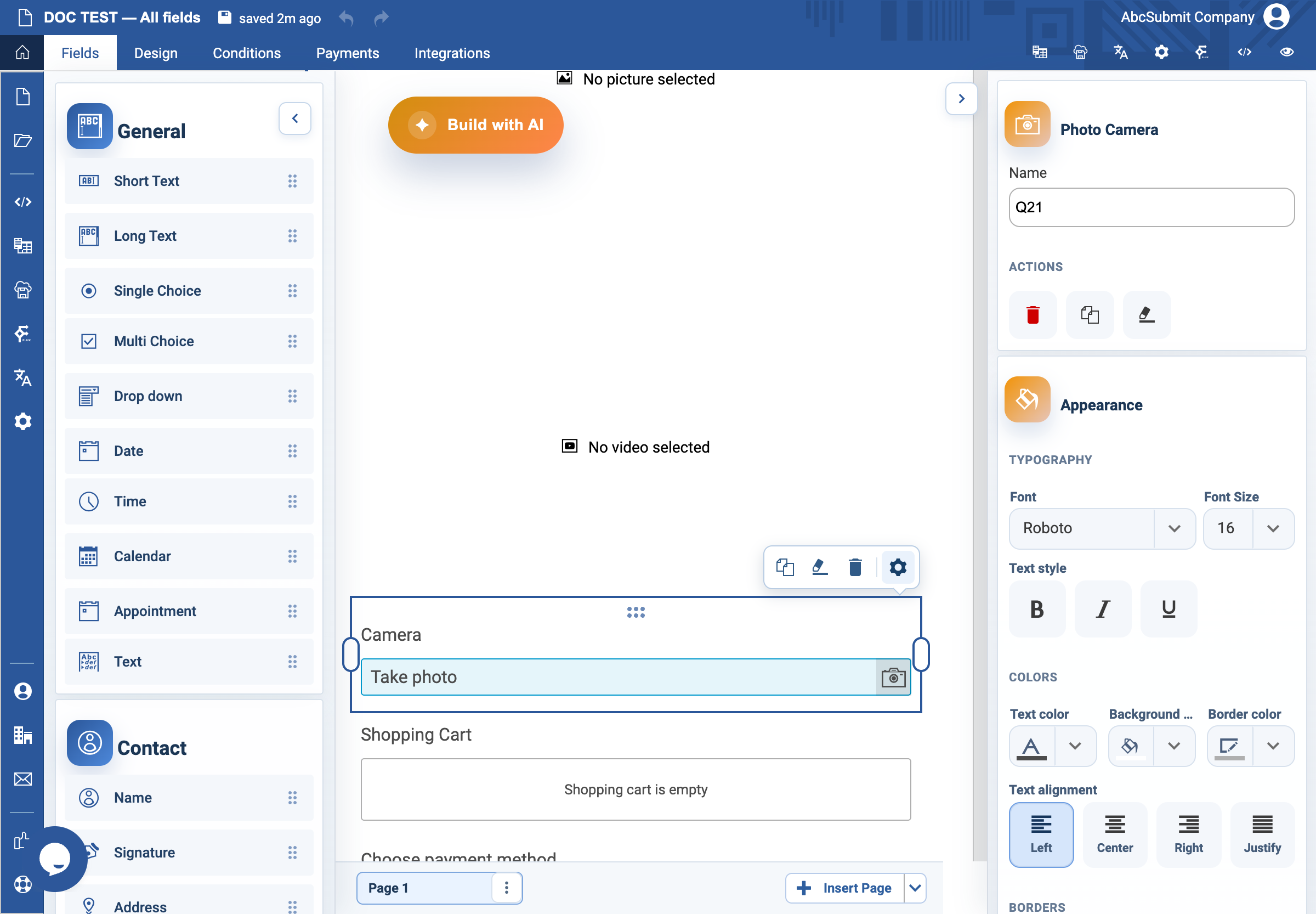
Photo Camera field
Use Photo Camera when the respondent should capture a new photo from their device while filling out the form.
Example: equipment-label photo
- Select Fields > Media > Photo Camera.
- Select the field and open Edit.
- Set the label to
Take a photo of the equipment labeland Name toequipment_label_photo. - Set Resolution to Low, Medium, High, or HD. Start with the lowest quality that meets the operational need.
- Set Facing mode to the environment-facing camera for objects, documents, and scenes; use user-facing only for a selfie-style capture.
- Set the placeholder or prompt to state exactly what the photo must show.
- Turn on Required Field only when a photo is indispensable.
- Preview on a target phone. Allow camera permission, take a photo, and also test the permission-denied or no-camera path.
Expected result
The browser asks for camera permission when needed, the appropriate camera is requested, and the form remains understandable when capture cannot be completed.
Permission and device limitations
Camera capture requires a secure context (normally HTTPS), a browser that supports getUserMedia, and a device with an available camera. The respondent must grant permission; a denial, blocked site permission, missing camera, insecure origin, or browser policy can prevent capture. Facing mode is a request, not a guarantee—some devices expose only one camera. Test permission denied, cancel, retry, and low-bandwidth upload paths; never assume a captured image proves identity.