Appearance
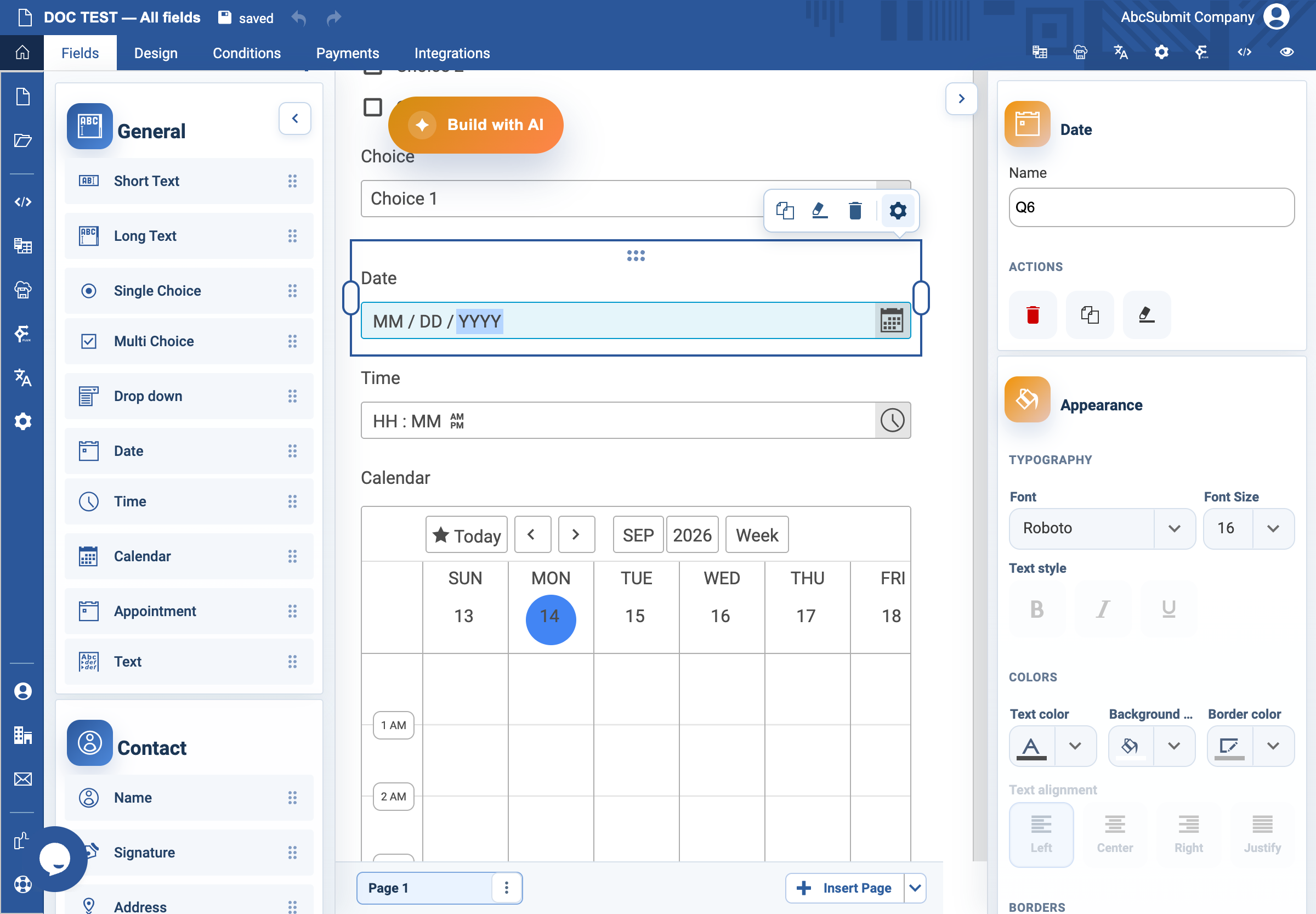
Date field
Use Date when the respondent must provide a calendar date, without a time of day.
Example: requested start date
- Open Fields > General and select Date.
- Select the field and open Edit.
- Set the label to
Requested start dateand Name torequested_start_date. - In the Date settings, choose the date format your audience expects.
- Leave Default value empty for a respondent-specific date. Use values such as
today,yesterday,+1d,+2d3w, or-3monly when a relative default is genuinely correct. - Turn on Required Field if the request cannot be processed without a date.
- Set Custom error text to
Enter your requested start date. - Preview and test the selected date format with a valid and invalid date.
Expected result
The respondent enters a date in the chosen order. The form accepts valid dates and gives the custom message when a required or invalid date needs correction.